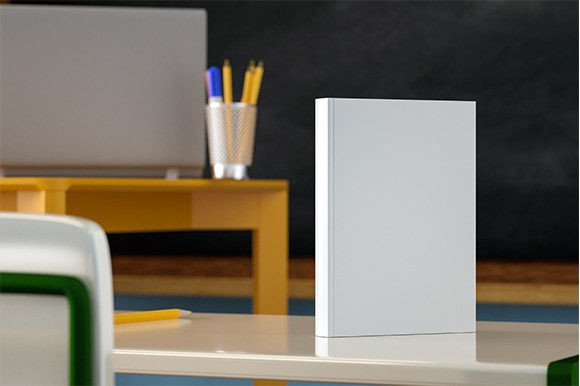
Paperback Book Mockup Back to School
Launching a new book—whether it’s a classroom workbook, a student journal, an educational guide, or a creative writing prompt book—requires more than great content. It demands presentation that builds trust, signals professionalism, and resonates with your audience before the first page is even turned. That’s where the Paperback Book Mockup Back to School steps in: a focused, ready-to-use design tool built for real-world efficiency—not just visual polish.
This mockup isn’t designed for gallery displays or conceptual art projects. It’s built for creators who need to move fast without sacrificing quality: educators preparing fall curriculum materials, indie authors launching study guides, small publishers packaging summer reading bundles, or freelance designers delivering clean, client-ready visuals on tight deadlines.
Why This Mockup Fits Real Workflows
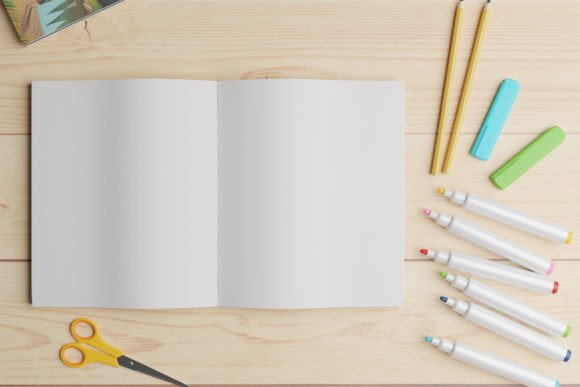
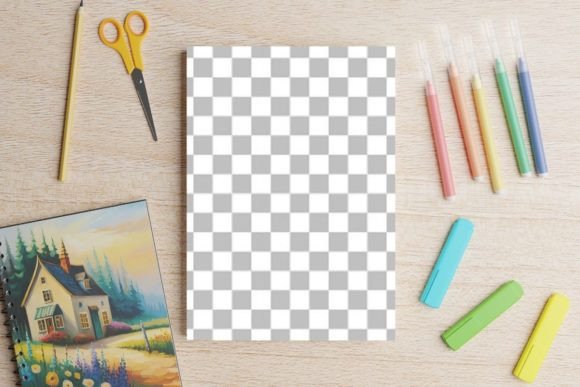
At its core, the Paperback Book Mockup Back to School delivers one essential advantage: time saved without trade-offs. Its single, well-photographed B5-sized paperback view captures natural lighting, subtle texture, and realistic spine curvature—no awkward angles or artificial shadows. Because it’s built using Photoshop Smart Objects, swapping your cover design takes three clicks: double-click the Smart Object layer, paste your artwork, save, and close. No layer masking, no perspective warping, no guesswork.
That simplicity matters most when you’re juggling multiple roles—like a homeschooling parent designing printable workbooks *and* promoting them on Instagram, or a university lecturer compiling supplemental reading material while prepping lectures. You don’t need advanced Photoshop fluency. You need reliability. And this mockup delivers it at 300dpi resolution, ensuring crisp output for both digital previews and print-ready PDFs.
Creative Uses Across Audiences
Different goals demand different applications—and this mockup adapts cleanly across contexts:
- Educators & Curriculum Designers: Use it to preview lesson-aligned covers for student handouts, vocabulary journals, or STEM activity books—then drop those visuals directly into parent newsletters or LMS announcements. Consistent cover styling helps students recognize learning materials instantly.
- Freelance Designers: Package your book cover services with mockup previews included. Clients see exactly how their brand colors, typography, and imagery translate onto a physical product—reducing revision rounds and building confidence early in the process.
- Self-Publishing Authors: Build cohesive series branding—even with just one title. Swap fonts, adjust background tones, or add foil-effect text overlays (within Photoshop) to hint at future editions, all while keeping the same trusted mockup foundation.
- Small Business Owners: Turn workbooks, habit trackers, or seasonal planners into tangible products. Pair the mockup with lifestyle photos (e.g., a notebook beside coffee and pencils on a sunlit desk) for Etsy or Shopify listings that feel personal, not generic.
Keeping Your Output Clear and Audience-Friendly
A strong mockup only works if what you place inside it supports your message. Here’s how to keep results effective:
- Respect the B5 size. Don’t stretch or crop your cover design to fill arbitrary space. Use the included PSD layers as a guide—margins, bleed areas, and safe zones are already mapped. Clarity starts with alignment to real-world dimensions.
- Test legibility at scale. Zoom out to 25% in Photoshop before exporting. If your title or subtitle disappears or blurs, simplify typography or increase contrast. Students scanning bookstore shelves—or parents browsing online—won’t linger on unreadable text.
- Match tone to purpose. A back-to-school math practice book doesn’t need whimsical watercolor textures unless that’s part of your brand voice. Let the mockup hold space for intentionality—not decoration.
Practical Tips for Getting Started
You don’t need a studio or a photographer to make your book look grounded and professional. Start here:
- Open the PSD file in Photoshop (CC 2019 or newer recommended for full Smart Object support).
- Navigate to the “Cover” Smart Object layer—usually nested under a clearly labeled group.
- Double-click it to open the embedded document, paste your finalized cover layout, and save. The mockup updates automatically.
- Export as JPG for web use or high-res PDF for print vendors—both formats are included and pre-configured.
No plugins. No third-party scripts. No trial-and-error blending modes. Just structure, clarity, and speed.
More Than a Time-Saver—A Consistency Anchor
When you’re managing multiple projects—a teacher releasing three new classroom resources, a blogger launching a downloadable planner series, or a nonprofit producing literacy toolkits—consistency builds recognition. Using the same mockup across titles creates visual rhythm. It tells your audience, “This belongs to the same thoughtful system.” That sense of cohesion is hard to fake with stock photos or inconsistent angles—and nearly impossible to maintain manually across dozens of assets.
The Paperback Book Mockup Back to School gives you that anchor point. Not as a rigid template, but as a reliable baseline—one you can personalize through color, typography, and content, while preserving realism and readability.
If you’ve found this mockup useful for your current project—or if it’s helped you ship something meaningful faster—we’d truly appreciate a recommendation. Word-of-mouth from fellow creators, educators, and designers is how practical tools like this continue supporting real work in the world.